How to Get Claude to Create PowerPoint Slides in Your Corporate Template (Step-by-Step)

If you’ve ever spent hours formatting PowerPoint slides to match your corporate template, I’ve discovered something that could transform your workflow. After extensive experimentation, I’ve figured out how to get Claude’s new Sonnet 4.5 model to create presentations using your actual company template - maintaining your brand colors, fonts, and layouts. While the results aren’t perfect and require some setup work upfront, this method has become a huge productivity unlock for me. The process I’m about to share took me hours to figure out, but I’m going to save you that time and show you exactly how to do it.
The first thing I want to note is that, as of this writing, you can only access these capabilities in Claude if you are a Max, Teams, or Enterprise subscriber (sorry, pro subscribers). You enable it by going into settings, then select capabilities, and then in the experimental section choose “Code execution and file creation” (this will toggle off “Analysis tool” if that was on - for some reason, you can only have one on at a time).
When I was first experimenting with this new capability last week, I was saying things like “Go research the Legal AI industry, and give me the top ways that family law firms are using AI in their daily practice. Create speaker notes for each slide. Create a 10-slide PowerPoint presentation and give me a download link.” Simple, easy, to the point. You will watch it go start doing the research, and then do a ton of tool calling, and eventually you will get a nicely formatted PowerPoint presentation that looks something like this:
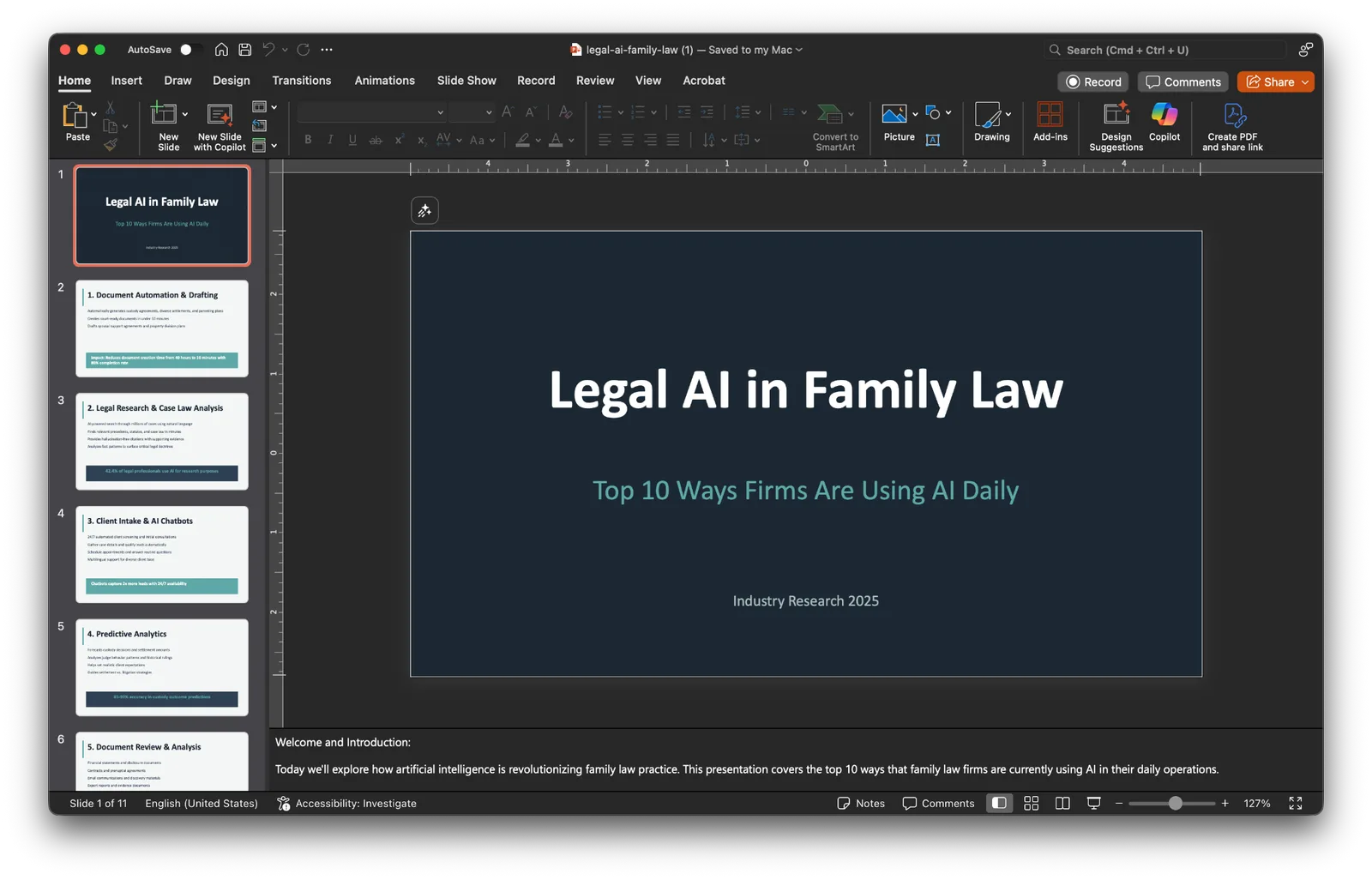
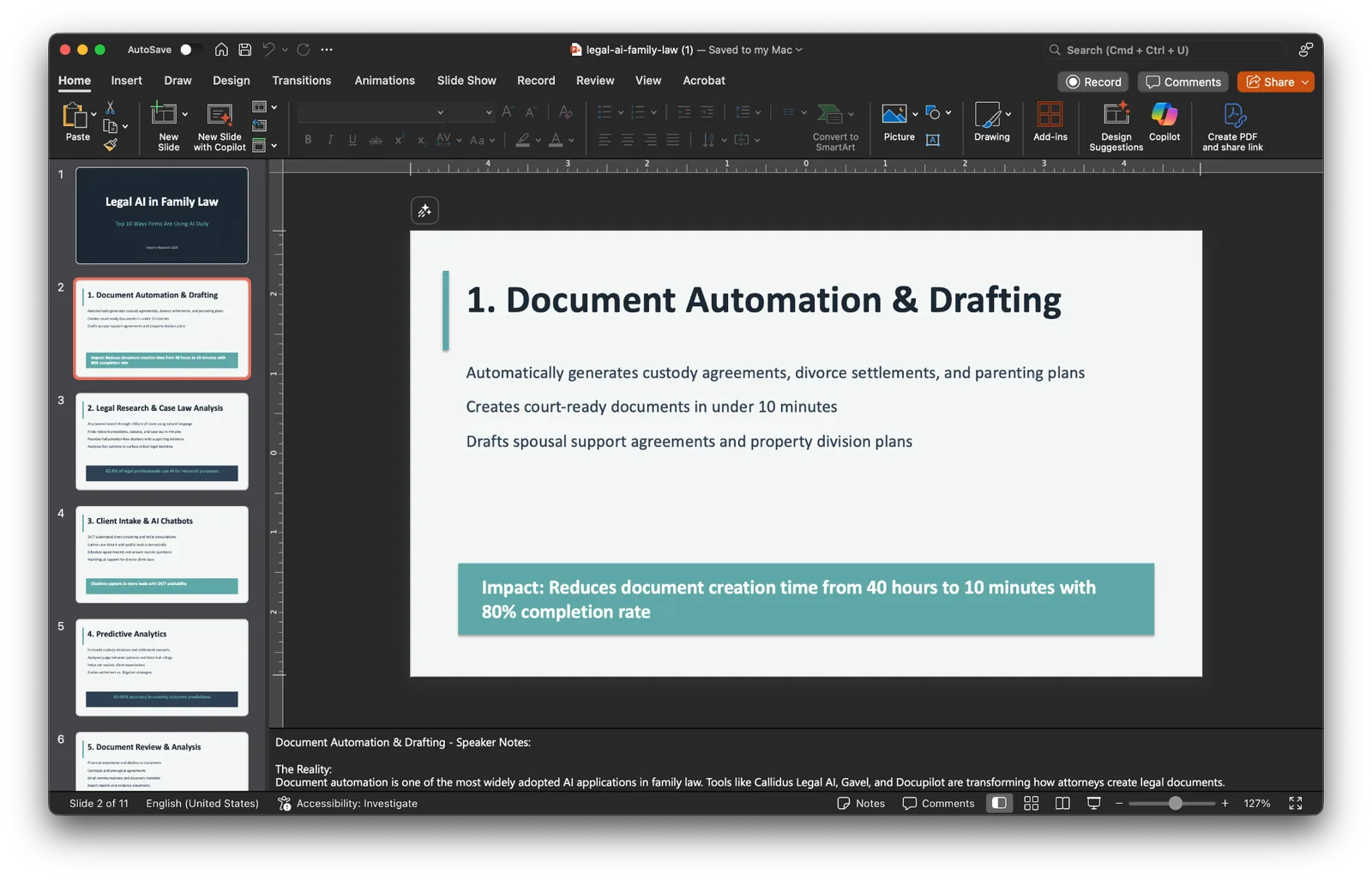
It’s really nicely formatted, and it added the speaker notes just like I asked.
This is great, but if you are anything like me, you want it in a standard format that you use (or if you work in a larger organization, there will surely be standard templates that the company uses). My next step was to upload one of my corporate templates, and I instructed it to do the same thing, but to use my corporate template instead.
The results were less than desirable :). It didn’t use my headline placeholders, didn’t follow the body structures or fonts, or adhere to my color scheme. It just overwrote its content on top of the slide structure of the deck.
Needless to say, it wasn’t good. So then I worked to figure out how to get Claude Sonnet 4.5 to work with my template the way I wanted. I’m going to save you the hours of work I went through and give you the answer.
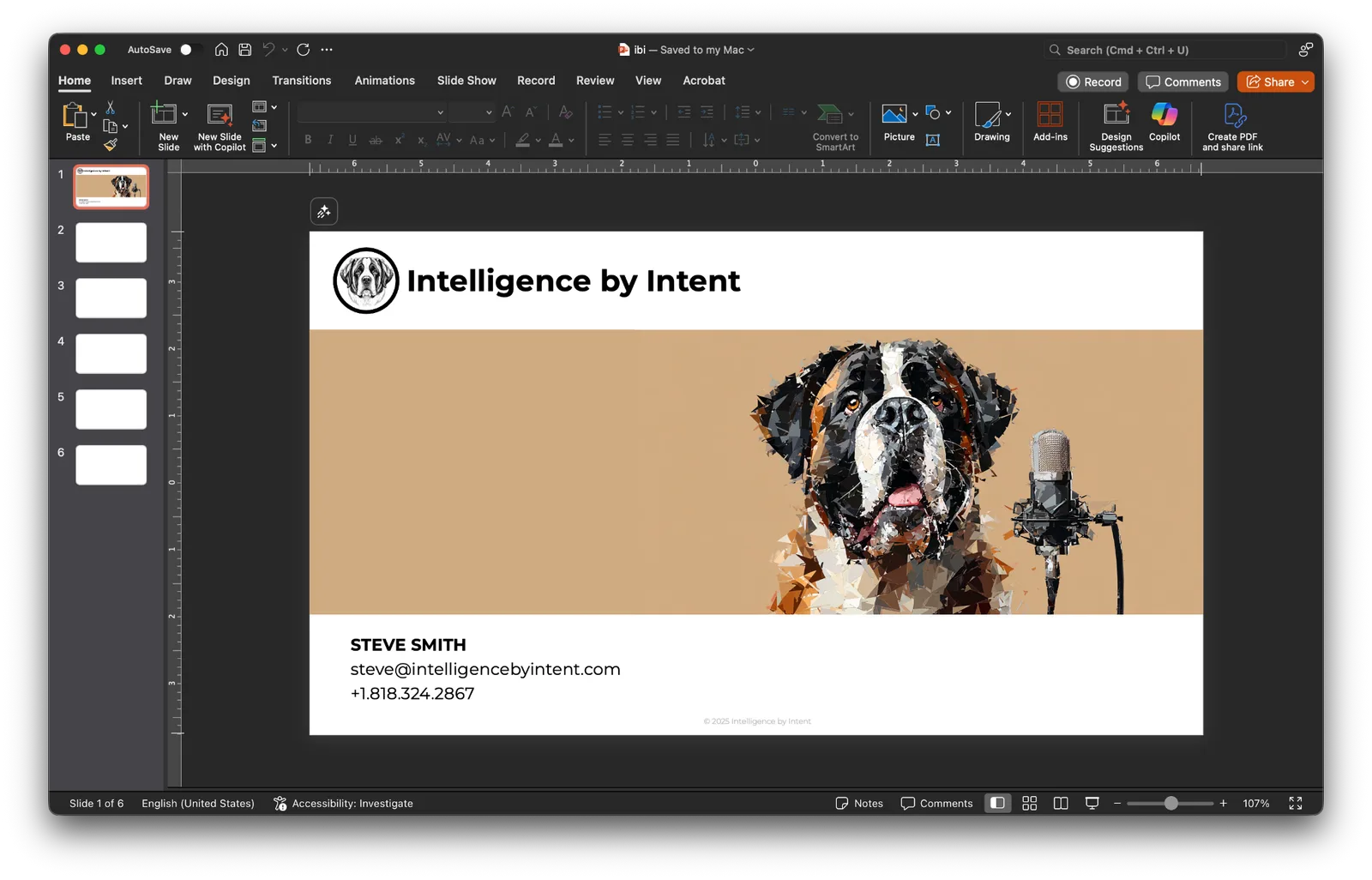
Step 1: Make a new blank presentation from your corporate template. For every slide type that you would want to use, make sure you create a blank version of that slide type in this PowerPoint. For example, you probably have a title slide, a headline-only page, a headline with a body paragraph page, a headline with two body paragraphs, a blank page, etc. Save that file, and you will use it to upload in the next step.
It had my header page:
Then a page with just a headline
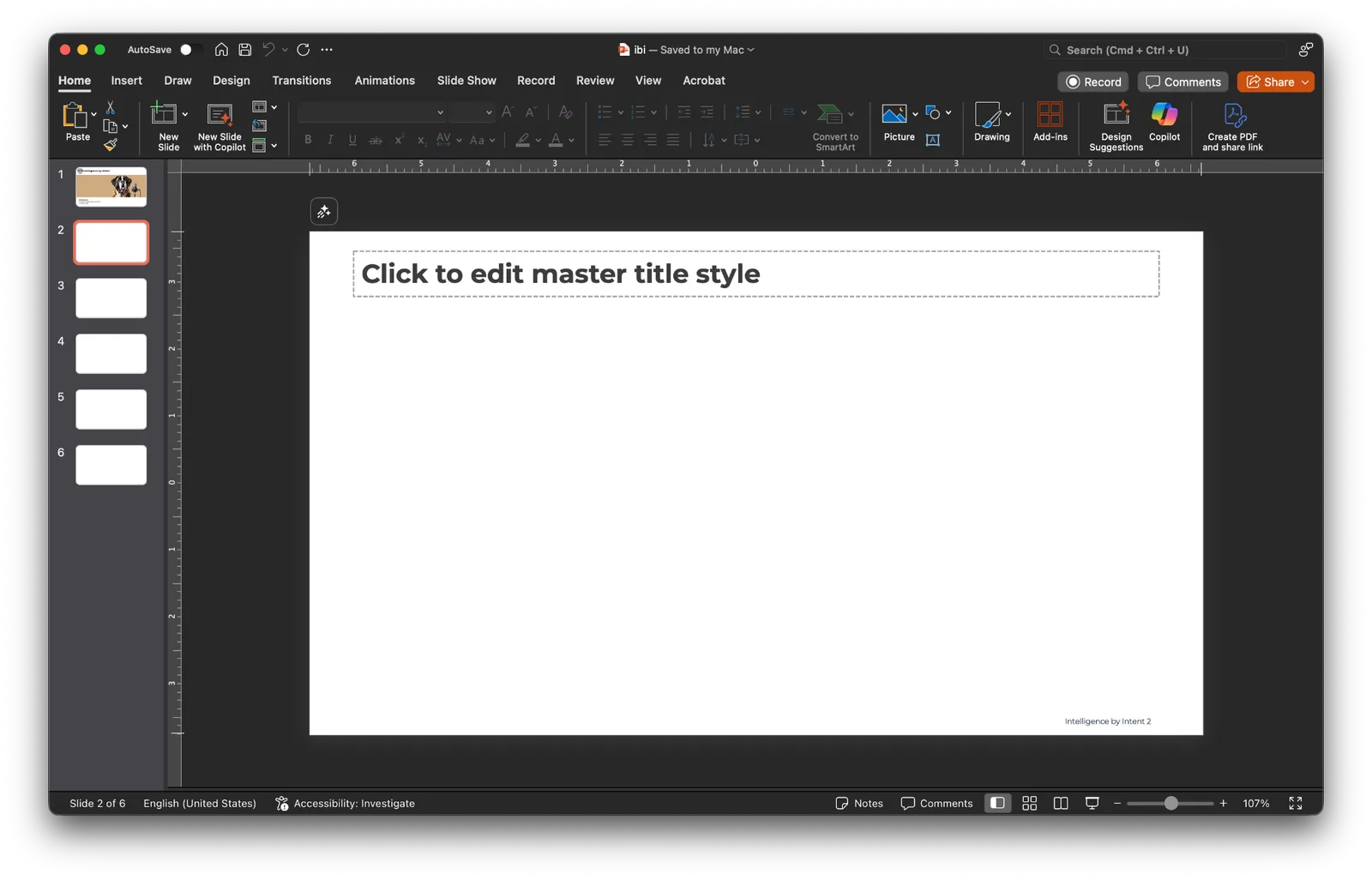
Then a page with a headline and a paragraph body, etc.
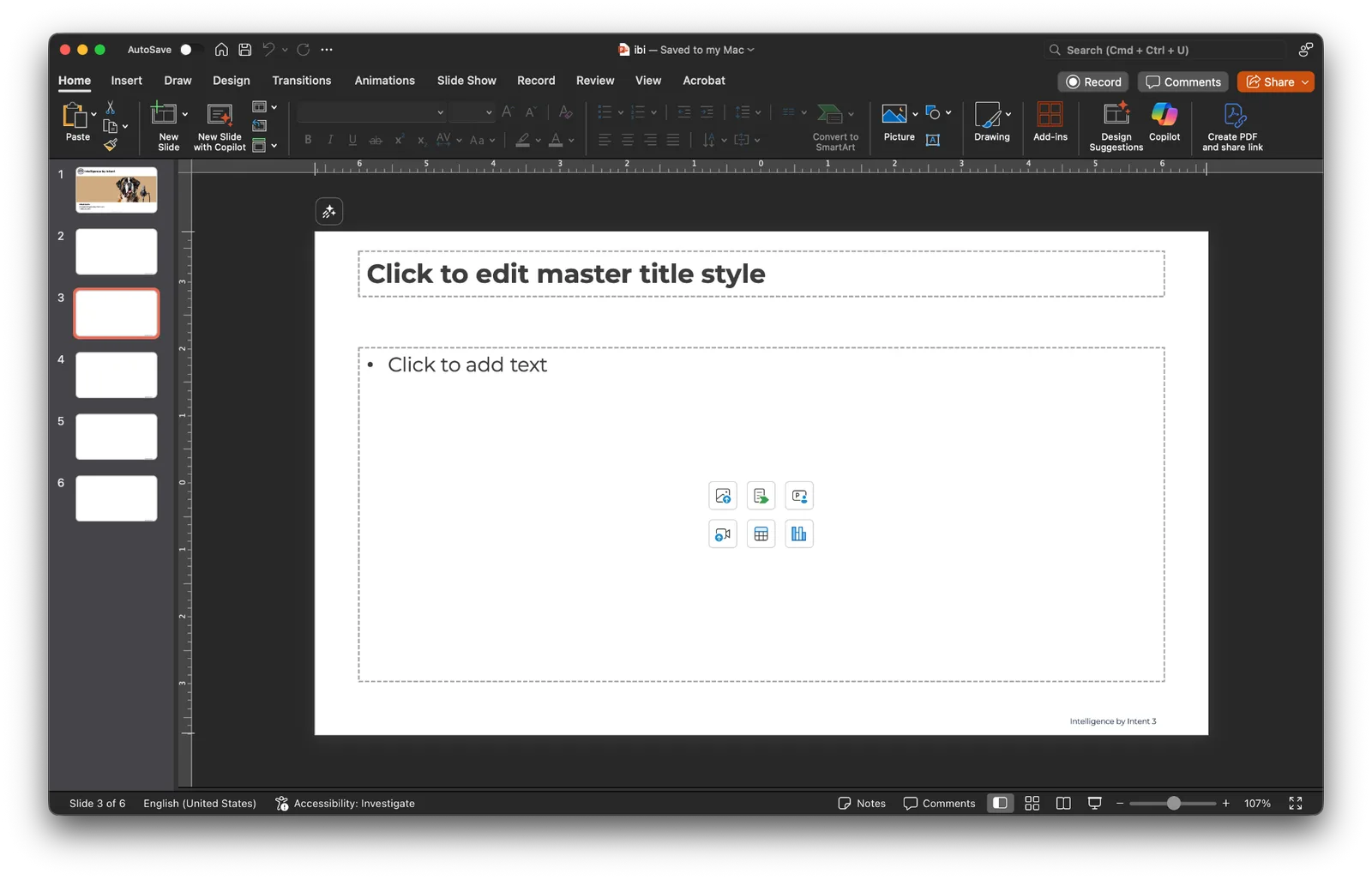
Repeat this process for all page styles in your deck that you want to use. It’s important. I initially tried it by uploading the template without creating the pages, and although it recognized all of them, it wouldn’t work properly.
Step 2: Now start a new Claude Sonnet 4.5 conversation, upload that .pptx file you just created with all of those blank pages, and give it these instructions:
“Analyze this PowerPoint template. Create a visual thumbnail grid and give me an inventory of all the slide layouts available, organized by type (title slides, content slides, etc.). Save the inventory to a markdown file so we can reference it.”
Step 3: Tell it what you want to build. For example, something like this structure:
“I need a presentation about how Lawyers can be using AI. Make it 5 slides and make sure two of the slides are a great use case. Create an outline and map it to the best template slides from the inventory.”
It will then come back with something like this:
Perfect! I’ve created your 5-slide presentation about how law firms can safely use commercial LLMs. The presentation matches your IBI template’s design aesthetic perfectly, using the tan/beige brand color, professional typography, and clean layouts.
Presentation Contents
Slide 1: Title/Cover
Professional cover slide with your IBI branding
Title: “How Law Firms Can Safely Use Commercial LLMs”
Subtitle: “Practical Applications and Best Practices”
Contact information included
Slide 2: Why Law Firms Are Adopting LLMs
Key Benefits (efficiency, accuracy, scalability, competitive edge)
Safety Considerations (privacy, ethics, oversight, compliance)
Slide 3: Use Case 1 - Contract Review & Analysis
The challenge: Time-intensive manual review
How LLMs help: Rapid review, comparison, extraction, flagging
Real impact: 2-3 hours reduced to 20-30 minutes
Safety measures emphasized
Slide 4: Use Case 2 - Legal Research & Memo Drafting
The challenge: 10-20 hours/week on research and drafting
How LLMs help: Synthesize concepts, draft summaries, organize case law
Real impact: 70% faster memo drafts, 50-state survey in 2 hours vs 2 days
Safety measures emphasized
Slide 5: Best Practices for Safe Implementation
4 key areas: Provider selection, policies, technical safeguards, professional responsibility
Bottom-line callout emphasizing thoughtful implementation
Step 4: Tell Claude to create your slides:
“Create the presentation using the template, preserving all the original formatting, fonts, and colors.”
It will then process and create a presentation with a download link for you:
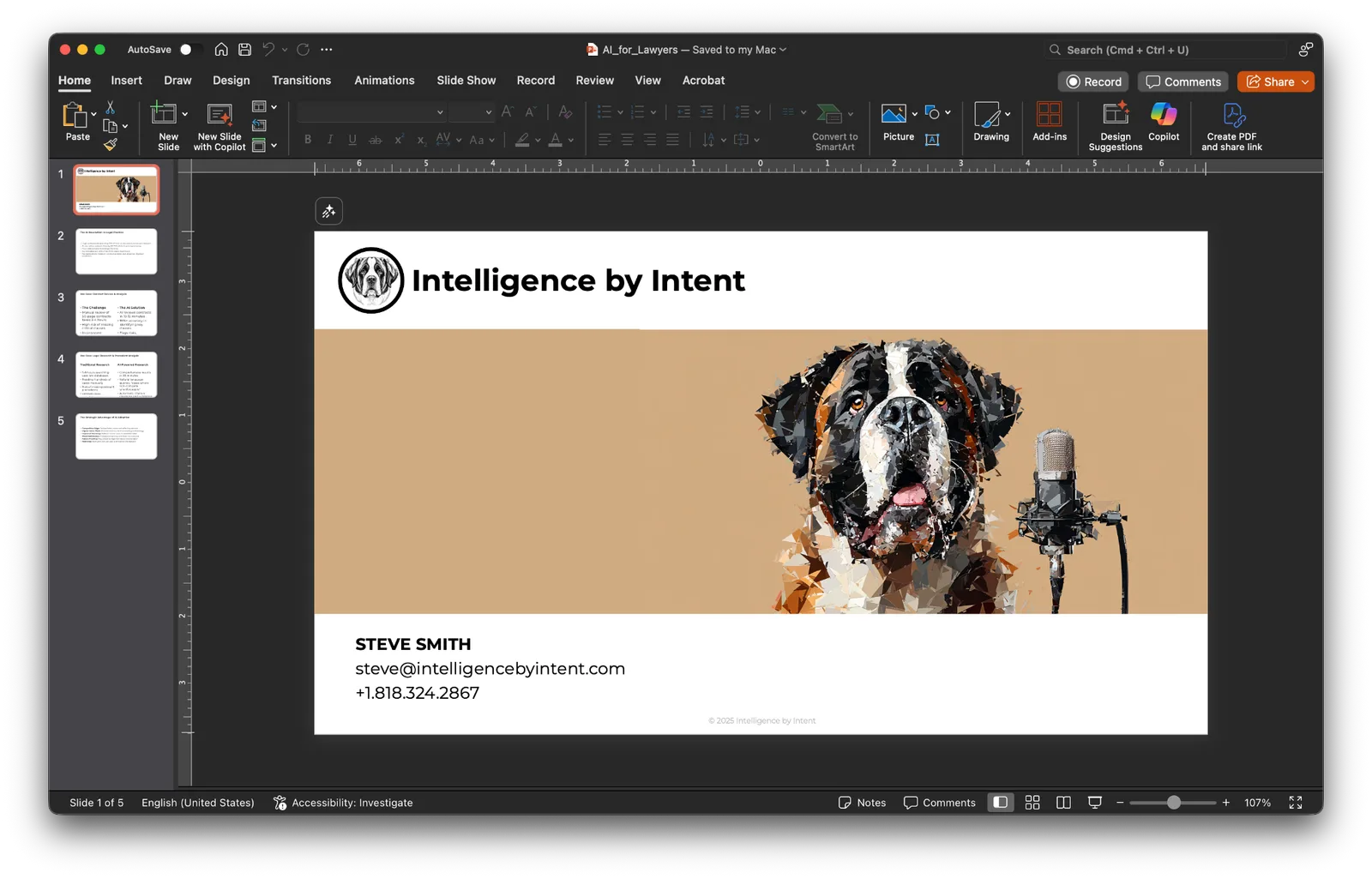
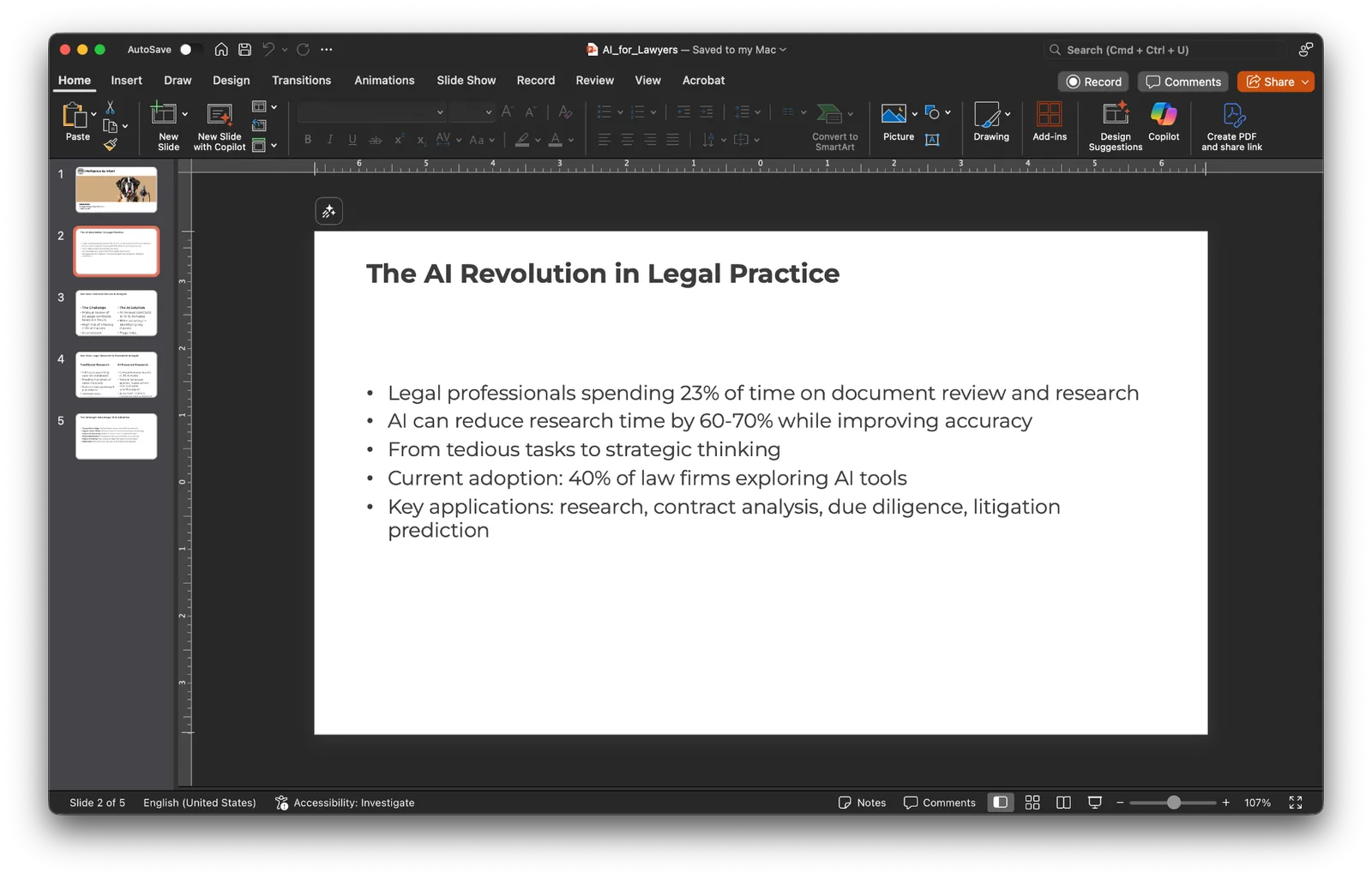
One thing I’ve noticed is that it’s great, but still not quite perfect. I’ve found that you need to provide a few extra instructions. To include in your instructions when creating slides:
Use html2pptx workflow only
Use clean typography, spacing, and subtle colors so that slides are extremely readable
Maximum 5 bullets per slide.
14pt minimum font size for body content
24pt font size for headlines
Maintain 0.75” minimum margins on all sides.
No overlapping text elements.
Shout out to one of my favorite YouTubers - Nate B Jones - who was clearly working on this at the same time that I was and did a great video on it this weekend (see below)
I have created a comprehensive Claude Project with additional details that I’ll write about in a future article. This project allows me to store research, files, and more, and have it generate a comprehensive deck with images, charts, text, and more. The results aren’t perfect - but it’s a massive leap over what was available before.
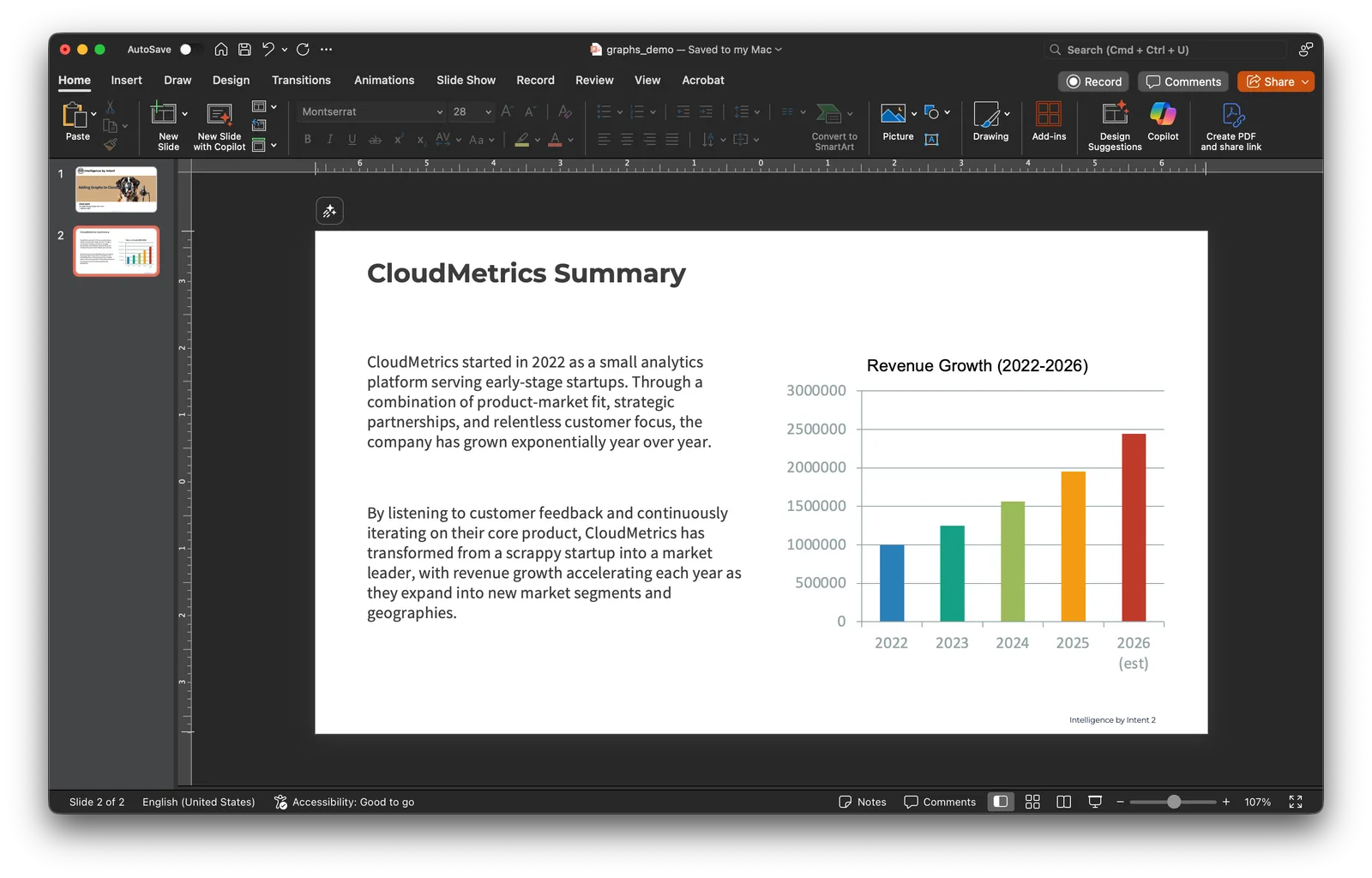
Hope you found this helpful. For me personally, this is a huge productivity unlock. Claude creates far better slides (at least currently) than ChatGPT, and Gemini lacks the ability to create native PowerPoint files.
Moving Forward with Confidence
The path to responsible AI adoption doesn’t have to be complicated. After presenting to nearly 1,000 firms on AI, I’ve seen that success comes down to having the right framework, choosing the right tools, and ensuring your team knows how to use them effectively.
The landscape is changing quickly - new capabilities emerge monthly, and the gap between firms that have mastered AI and those still hesitating continues to widen. But with proper policies, the right technology stack, and effective training, firms are discovering that AI can be both safe and transformative for their practice.
Resources to help you get started:
In addition to publishing thought AI leadership on a regular basis, I also work directly with firms to identify the best AI tools for their specific needs, develop customized implementation strategies, and, critically, train their teams to extract maximum value from these technologies. It’s not enough to have the tools; your people need to know how to leverage them effectively.
For ongoing insights on AI best practices, real-world use cases, and emerging capabilities across industries, consider subscribing to my newsletter. While I often focus on legal applications, the broader AI landscape offers lessons that benefit everyone. And if you’d like to discuss your firm’s specific situation, I’m always happy to connect.
Contact: steve@intelligencebyintent.com
Share this article with colleagues who are navigating these same questions.